Basic git commands
Simple git commands you would use everyday, nothing else. Best to use as a cheatsheet sort of idk. Enjoy.
1. Set username and email. These credentials are used to tell who committed a particular commit.
# Set it globally.
git config --global user.name "Your Name"
git config --global user.email "your_email@example.com"

# Set for a particular repository.
cd repo
git config user.name "Your Name"
git config user.email "your_email@example.com"
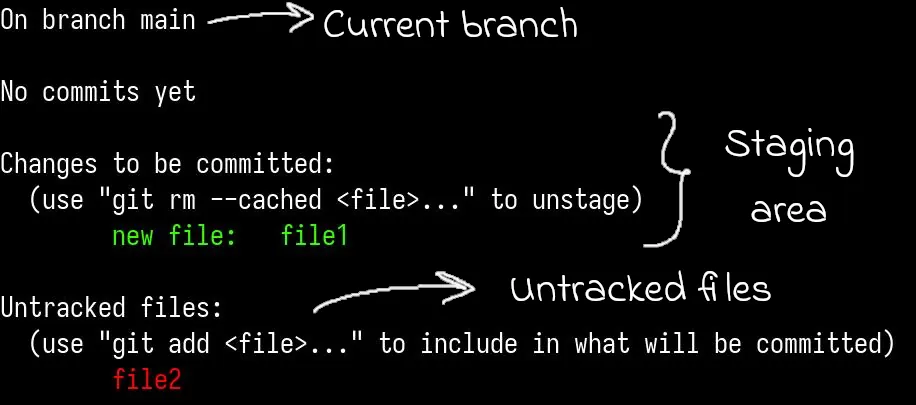
2. Get status of which files are untracked, which are in staging area and which are modfiied.
git status
git status -s # shorter version of "git status".
			  # red M means changes made in file but not staged.
			  # green M means file is staged but not commited.
3. Add files to staging area.
git add file1 file2
git add -A (Add all untracked files)
4. Commit files from staging area.
git commit -m "Commit message"
5. Match working directory with its last commit version. If the file is staged and you modify it, then running this command will restore it to the staged version instead.
git checkout path/filename # To match the contents of the file/ files with their last commit verison.
git checkout -f # To match the contents of all modified files to their last commit version.

# git restore is the new version.
6. Show history of commits.
git log

# Show upto n (here 1) commit(s). It will show a detailed overview of the commit(s).
git log -p -1
7. Compares working directory with the staging area. If the file isn’t in staging area then it will compare it with the version last committed version (as that is in the staging area by default).
git diff
8. Compare files in staging area with their last commit version.
git diff --staged
9. Add/ Stage and commit tracked files in a single command.
git commit -am "Commit message"
Only works for files that are already tracked. Untracked files won’t be added. Use git add -A or git add untracked-file-name for that.
10. Remove a file from both working directory and from being tracked.
git rm filename

# then commit the changes.
git commit -m "remove filename"
11. Remove a file from being tracked but not from the working directory.
git rm --cached <filename>

# then commit the changes.
git commit -m "remove filename from being tracked"
12. Example .gitignore. The effects of gitignore file is immediate.
If the file you want to ignore is already being tracked then writing it down in gitignore won’t work. Simply git rm --cache the file and then it will be ignored by the git.
*.log       # ignore log files present in any subdir.
/*.log      # ignore log files present in root of the working directory.
somefolder/ # to ignore some folder.
13. View all branches.
git branch # By default their will be a master or main branch depening on your git global configs.
14. Create a branch. When you create a new branch, it starts with the exact state (commits and files) of the branch you created it from.
git branch branchname
If you created it from main branch and it had 5 commits. Then this new branch will also have 5 commits and start from their.
15. Switch branch.
git checkout <branch-name>
16. Create and switch to that branch in one command.
git checkout -b branchmain
17. Merge branch2 with branch1.
git checkout <branch2>
git merge <branch1>
Now branch2 has the changes made in branch1.
18. Connect GitHub repo (called as remote repo) with your local git repo. Then you can push and pull from this remote repo.
git remote add origin git-repo-url

# It will add the repo url under the name origin. So next time whole url can be referred as "origin". Also we can say origin as the remote now.
Its basically like origin = url in terms of programming.
19. See what remote repo have been added.
git remote -v
20. Change url a remote (like origin) points to. Remote name is simply the name you associated your remote url with like origin.
git remote set-url <remote-name> <new-url>
21. Remove a remote repo link like origin.
git remote remove origin # Replace origin with whatever you named your remote repo.
22. Rename a branch.
# Switch to the branch you want to rename.
git branch <branch-to-rename>

# Rename the branch.
git branch -M <new-branch-name>
23. Set upstream for a branch.
git push -u origin main
# Now if you are on main branch, just writing git push would push main branch to origin.
# Won't work if you change branch.
24. How to push some other branch than main.
git push origin <desired-branch-to-push>
25. Clone a remote repo.
git clone <repo-url> # Will clone the repo contents into a folder named after the repo name.
git clone <repo-url> <folder-name> # Will clone the repo contents into <folder-name> folder.
26. Set default branch as main globally.
git config --global init.defaultBranch main
Notes
- Tracking a file starts right after you add it to staging area.
- Committing the file means you tell git to save these as the latest changes to my files.
- A modified file it git means a tracked file whose content is changed. And that change in file hasn’t yet been staged.
- Working directory simply means your local git repo. Or, the directory in which
git init .was run - The staging area if empty then it contains the last commit files.
- Adding a file in git simply means putting it to staging area.
- Local git repo can be hosted on platforms like GitHub, bitbucket, gitlabs, etc.
- Remote repo mean a repo in some remote place (other than your local machine). Somewhere in cloud like GitHub. Then you link it with your local repo to contain the same things.
- Repo = Repository.
Lol diagrams xD?
Git workflow

Git status
🕊️ (don’t mind me, I am just a bird)